Building a Figma Plugin with Vibe Coding
How I, a designer who doesn't code, built a UX writing plugin for Figma through vibe coding with Cline and ChatGPT, and connected an AI analysis engine to it.

These days, how we work with AI matters more than how we use it.
AI is no longer just a tool that produces output for you. It has become a colleague and collaborator that sits beside you and works through problems with you.
For me, AI is the most reliable way to get more done at work.
Whether I’m writing a PRD, generating ideas, or automating repetitive tasks,
I now handle most of the process together with AI.
Today I want to share one of my recent projects: building a Figma plugin with AI.
It’s a case where I moved past using AI as a simple tool and experienced it as a partner in solving problems.
In short, even without knowing how to code, I was able to finish a Figma plugin that corrects UX writing, just by talking through it in VS Code with Cline and ChatGPT. Below, I walk through the process in order, including the problems I ran into when connecting an AI analysis engine.
From a Slack bot to a Figma plugin
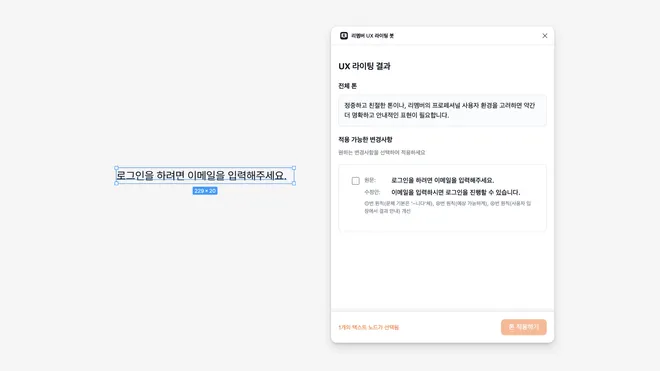
This project started with a UX writing Slack bot that our DevOps team had built a while ago.
Designers could enter a sentence and the bot would correct it according to Remember’s UX writing principles. It was useful, but as someone who works with copy directly in Figma, I had to keep opening Slack and copying and pasting.
So I decided to build a plugin, thinking, “Wouldn’t it be great if I could do this right inside Figma?”
What is vibe coding? Coding together with AI
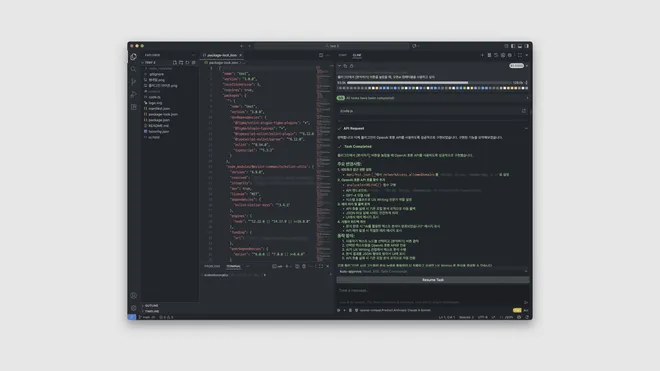
I built this project through vibe coding with AI.
In VS Code, I made this request to ChatGPT through Cline:
“I want to build a UX writing correction feature as a Figma plugin.
It should reflect Remember’s UX writing principles, and it’d be nice to have a live preview too.”
Figma plugins come with a basic structure of files like manifest.json, code.ts, and ui.html.
Based on that structure, the AI suggested code for each feature, and I kept the conversation going to adjust what I needed.
When the code didn’t work, I said, “This part isn’t working,” and the AI offered the cause and a fix.
The result of this process was the Remember UX Writing Bot.
The plugin uses AI to analyze the text a designer selects in real time and corrects it according to Remember’s UX writing guide.
Getting to AI as the analysis engine
The first version analyzed text using only TypeScript logic.
It could detect word patterns and sentence structure, but it couldn’t understand context.
So I brought in an OpenAI-compatible API as the analysis engine.
Once AI was integrated, the plugin became a completely different tool.
It now analyzes the text a user enters against the eight principles of Remember’s UX writing guide,
and suggests copy that sounds more natural and fits the brand’s tone.
For example, I sent the AI a request like this:
“Analyze the following text according to Remember’s UX writing guide.
Keep the style ‘polite but friendly’ and the emotion ‘clear rather than sympathetic.’”
As requested, the AI returns all of the following as structured JSON data:
- A tone evaluation for each sentence
- Suggestions for better word choices
- An analysis of how well the text fits the brand guidelines
The plugin visualizes this data, showing the original and suggested versions side by side. Selecting an item applies the change in Figma right away.
Problems I ran into working with AI
Of course, not everything went smoothly.
The JSON the AI returned was sometimes incomplete, and special characters often caused errors.
For example, when I said,
“The AI response is broken. Figure out the problem and suggest a fix.”
the AI suggested extracting only the JSON block and parsing it step by step.
(Since I know nothing about JSON or parsing, I just asked the AI to take care of it.)
After several rounds of trial and error, the AI implemented multi-step parsing logic that solved the problem.
The lesson from this was clear.
AI isn’t perfect, but it is a partner you can solve problems with.
The UX of a tool for UX writing
While building the plugin, I found myself thinking about the UX of a plugin that supports UX writing.
I paid attention to small details like loading feedback during analysis, the message shown when an AI response fails,
and the enabled and disabled states of buttons.
AI will sometimes build these small UX details on its own, but “on its own” is exactly the catch,
so I had to go back with specific requirements to refine them.
In the end, the plugin’s quality depended less on the code than on how natural the experience felt,
so I refined the interactions many times to keep it complete as a design tool.
Here’s what the plugin currently offers:
- AI-based tone analysis (about 90% accuracy)
- Automatic application of about 70 rules
- Live preview and selective application
Closing thoughts
My biggest takeaway from this project is that working with AI ultimately comes down to the skill of conversation.
Rather than just describing what to build, when I talked through why it needed to be built, the code naturally followed. You don’t have to be a developer. If you can design the context and put a problem into words, you can now build tools with AI.
In an age when AI writes the code for you, I believe designers are still the people who design the context.
This post was translated from the original Korean version. Read in Korean